Reference
Templates Configurator
Reference for the Templates Configurator: copy method, instrument and risk management template types, how they are created, and how overrides resolve.
Last verified
The Templates Configurator is where you define how trades are copied from a Leader account to one or more Follower accounts.
Each Template contains the copy settings used by an Account Group or individual account. You can create multiple Templates to support different trading strategies or account configurations.
Template Types
There are three types of Templates you can create:
- Copy Method: controls how position size is copied from the Leader to Followers.
- Instrument: restricts copying to a selected list of instruments, with optional per-instrument copy method overrides.
- Risk Management: sets daily profit and loss limits per account.
Default Template
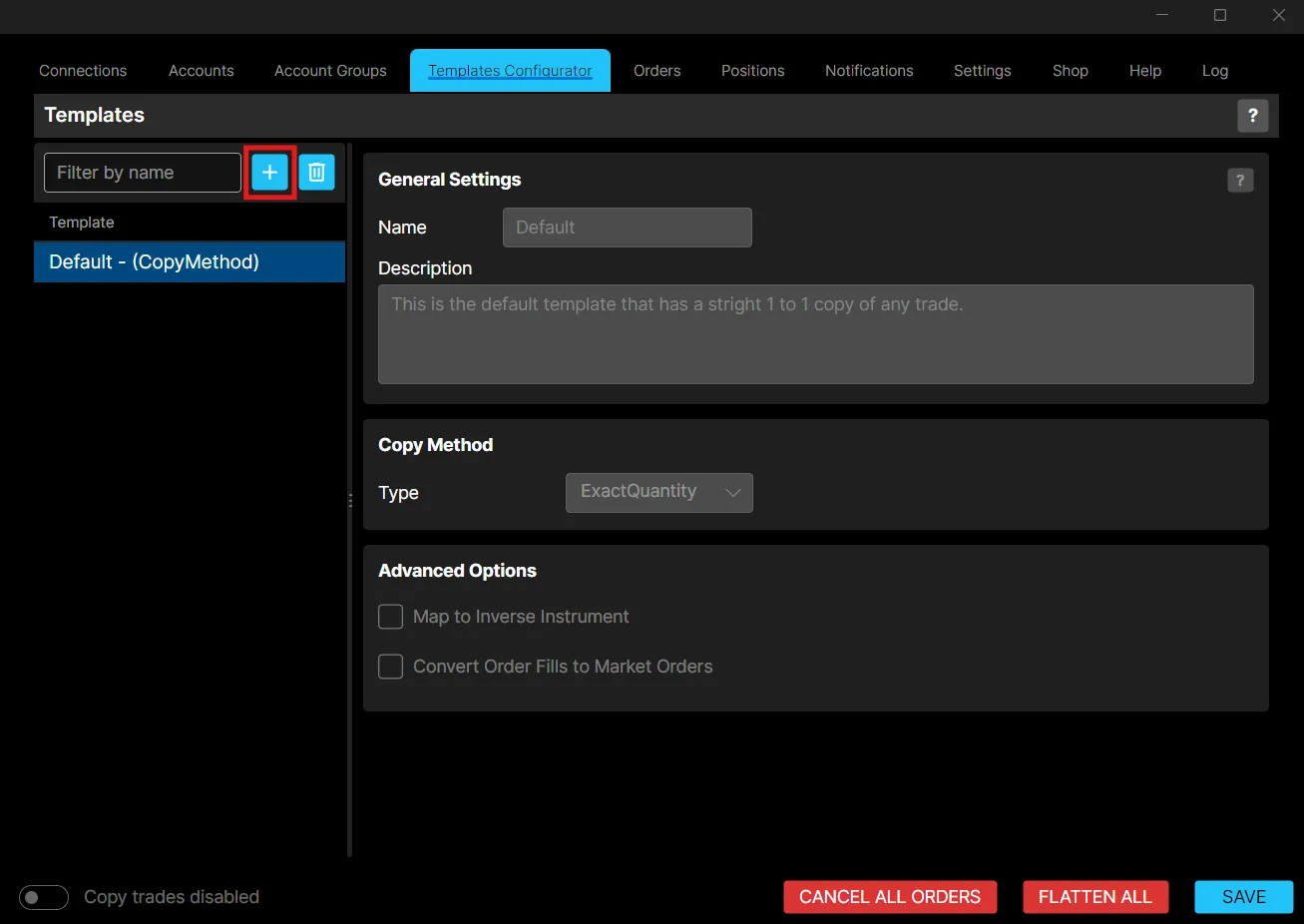
A Default Copy Method template is provided automatically as the global template, applied to every Account Group and account unless a custom template is assigned. It copies the exact quantity from the Leader to each Follower. If the Leader opens 2 contracts, each Follower also opens 2.
Creating a Template
To create a new Template:
- Click the + icon.
- Select the template type: Copy Method, Instrument, or Risk Management.
- Enter a Name and optional Description under General Settings.
- Configure the settings for that type.
- Click Save.
The Template is now available to assign to an Account Group or individual account.
Copy Method Templates
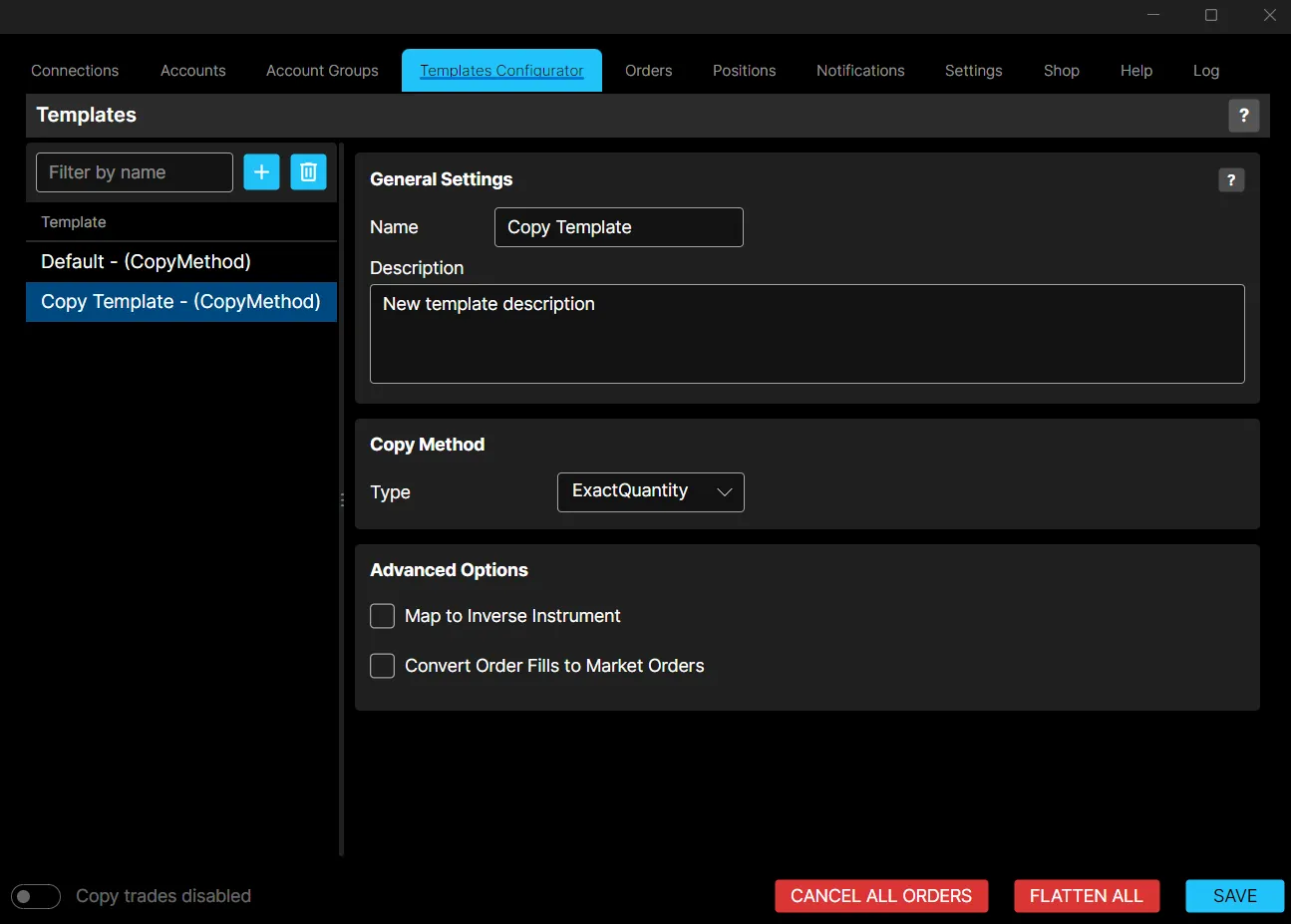
Choose a Type:
- Exact Quantity: copies the exact number of contracts from the Leader to each Follower. 4 contracts on the Leader opens 4 on each Follower.
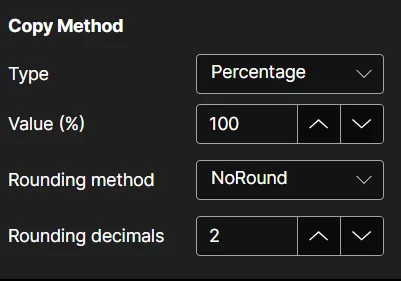
- Percentage: copies a percentage of the Leader’s quantity. At 50%, 4 contracts on the Leader opens 2 on each Follower.
When using Percentage, also configure:
- Value (%): the percentage of the Leader’s quantity to copy.
- Rounding method: NoRound copies the exact percentage including decimals, RoundUp rounds any decimal result up to the next whole number, and RoundDown rounds it down to the nearest whole number.
- Rounding Decimals: how many decimal places to keep before rounding is applied.
Advanced Options
- Map to Inverse Instrument: trades the inverse instrument on the Follower account, if one exists. 5 contracts of NQ on the Leader can open 5 contracts of the inverse instrument on the Follower.
- Convert Order Fills to Market Orders: instead of copying limit and stop orders directly, TradeCopier waits for the Leader’s order to fill, then places a market order on Followers to mirror the fill.
Instrument Templates
Instrument templates restrict copying to a selected list of instruments.
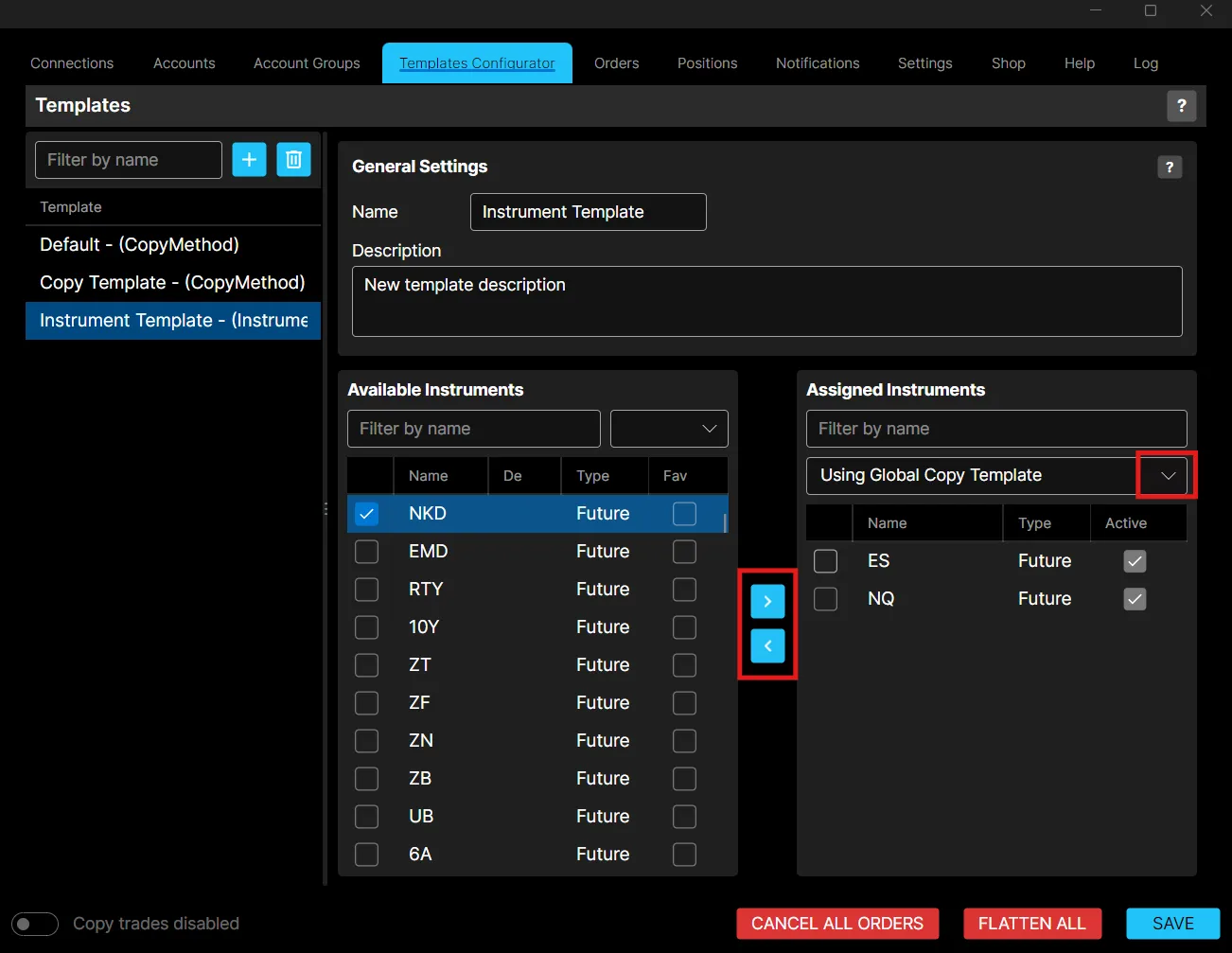
- Use Filter by name or scroll the Available Instruments list to find instruments.
- Check the box next to each instrument you want to include, then click > to move it into Assigned Instruments. Use < to remove one.
- Optionally check the Fav column to mark favourite instruments.
- Assign a Copy Method, either for the whole template using the dropdown above Assigned Instruments (which defaults to Using Global Copy Template), or for an individual instrument using the Copy Method dropdown in that instrument’s row.
If no Copy Method is assigned, the template falls back to the Global Copy Template, which defaults to the Default Copy Method and is changeable in the Settings tab. A Copy Method assigned to an individual instrument overrides both the Instrument Template’s own setting and any Global template. Click the X to remove an assigned template and revert to the level above it.
Risk Management Templates
Risk Management templates set a daily profit or loss limit per account. Once the limit is reached, trading is automatically disabled for that account for the rest of the day.
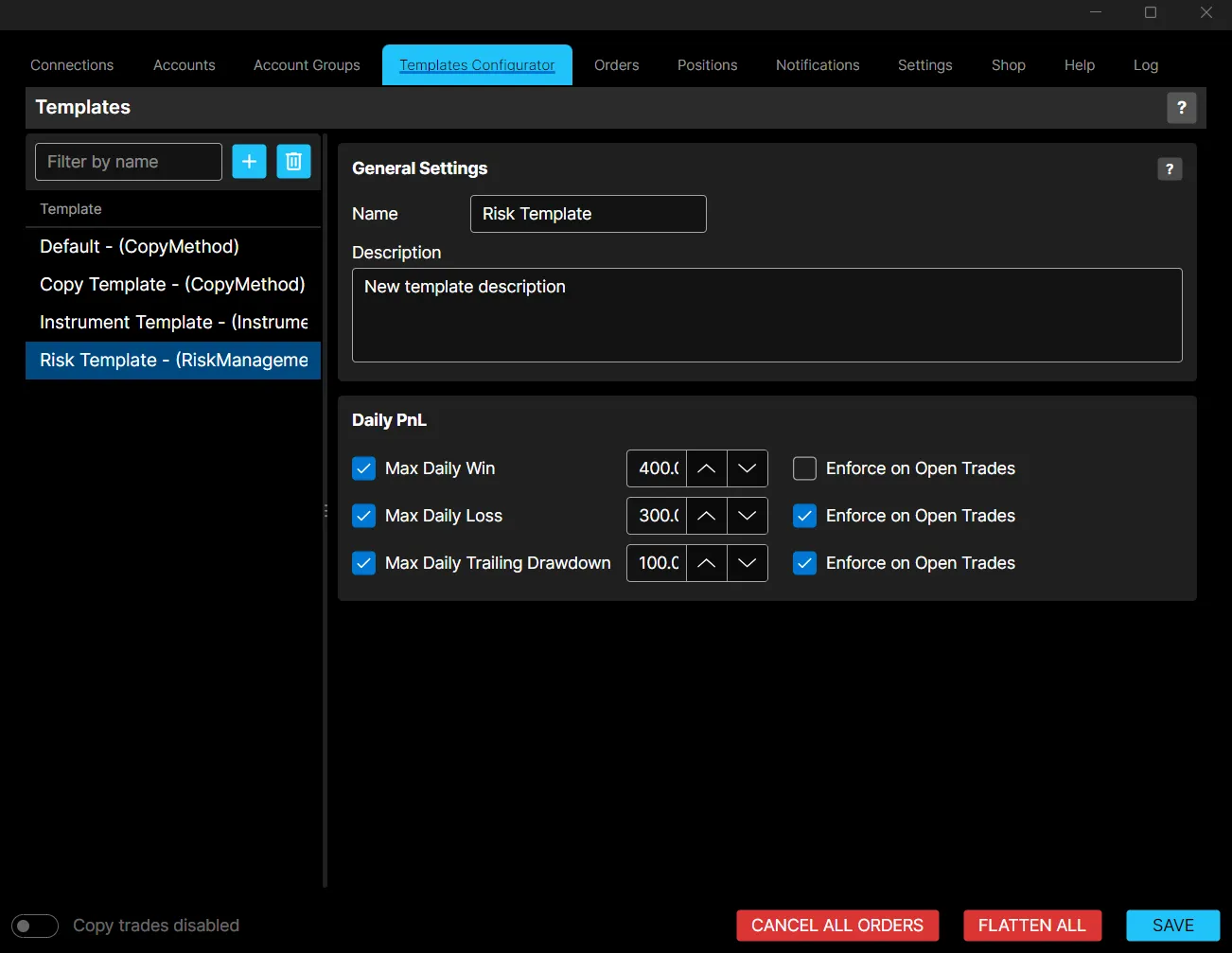
Configure under Daily PnL:
- Max Daily Win: a daily profit target. Once closed PnL exceeds this amount, trading is disabled for the account for the rest of the day. A 1,000 target reached by a 1,200 profit locks the account for the day.
- Max Daily Loss: a daily loss limit. Once closed PnL falls below this amount, trading is disabled for the account for the rest of the day. A 500 limit breached by a 600 loss locks the account for the day.
- Max Daily Trailing Drawdown: a third daily limit, with its own value and its own Enforce on Open Trades option.
Max Daily Win and Max Daily Loss each have an Enforce on Open Trades option once enabled. This considers open and closed PnL together. If the combined total hits the limit, all open positions are closed automatically and trading is disabled for the day.
Important:
- Limits apply per account, even when the template is assigned to an entire Account Group. They are not a combined total across the group.
- Once a limit is hit, trading is disabled only through TradeCopier for the rest of the day, and only while the Risk Management Template remains applied. Update the limits or remove the template to resume trading sooner.
- A Risk Management template assigned to an individual account overrides any Risk template applied at the Account Group or Global level.
Assigning a Template
Templates are assigned to Account Groups or individual accounts. Each uses its assigned Template whenever trades are copied from the Leader account. The same Template can be reused across multiple Account Groups, or you can create separate Templates per strategy.
Editing a Template
- Select the Template from the list.
- Update the required settings.
- Click Save.
Changes take effect the next time trade copying is enabled.
Deleting a Template
- Select the Template.
- Click the trash icon.
- Confirm the action.
Deleting a Template does not remove any broker connections or trading accounts. Any Account Group or account still using the deleted Template must be assigned a new one before trade copying can resume.
Best Practices
- Use descriptive names to identify each Template.
- Test new Template configurations using simulated accounts.
- Review Template settings before enabling trade copying.
- Save your configuration after making any changes.