How-To Guides
Copying Trades
Enable trade copying in ETP TradeCopier, understand what changes while copying is active, monitor the results, and stop copying safely.
Last verified
Once your Connections, Account Groups, and Templates have been configured, you’re ready to begin copying trades.
TradeCopier monitors your Leader accounts and automatically copies eligible trades to the assigned Follower accounts using the configured Template.
Start Copying Trades
To begin copying trades:
- Verify that your Connections are active.
- Confirm that your Account Groups and Templates are configured.
- Click the Copy Trades toggle located in the lower-left corner of the application.
- Click Save if you’ve made any configuration changes.
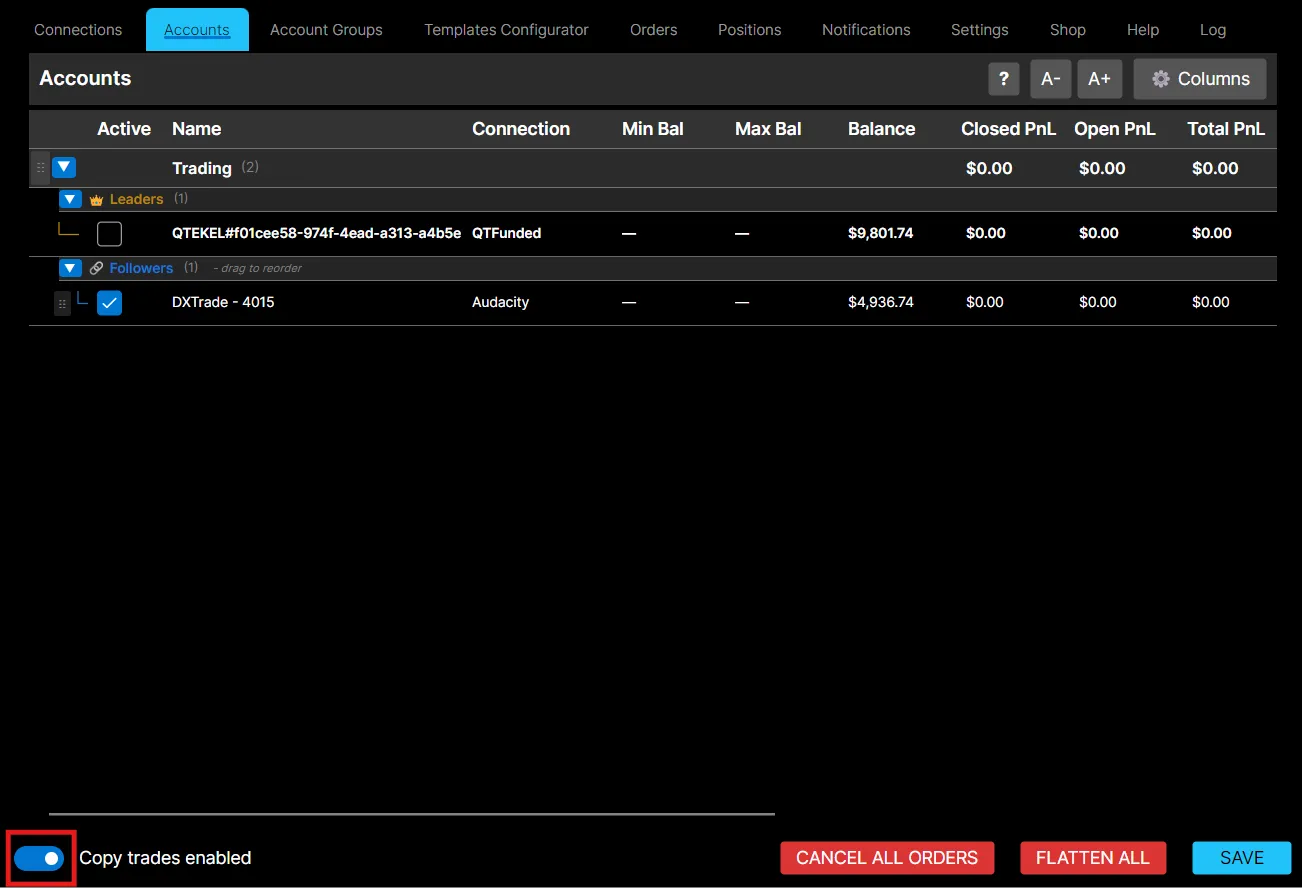
When the toggle is enabled, TradeCopier begins monitoring your Leader accounts for new trading activity.
While Copying Is Active
When trade copying is enabled:
- New trades placed on a Leader account are evaluated using the assigned Template.
- Eligible trades are automatically submitted to the associated Follower accounts.
- Orders and Positions are updated as trades are processed.
- Certain configuration pages become read-only to help prevent accidental changes while copying is active.
Monitor Trade Activity
You can monitor trade copying using the following pages:
- Orders: view submitted and completed orders.
- Positions: monitor open positions across your accounts.
- Log: review application events and troubleshooting information.
These pages help confirm that trades are being copied as expected.
Stop Copying Trades
To stop copying trades, switch the Copy Trades toggle off.
Once disabled, TradeCopier stops monitoring Leader accounts and no new trades will be copied.
Existing positions remain open until they are managed manually or according to your trading strategy.
Best Practices
- Verify your configuration before enabling trade copying.
- Test new Account Groups and Templates using simulated accounts whenever possible.
- Review the Orders and Log pages if copied trades do not behave as expected.
- Save your configuration after making any changes.