Getting Started
Install TradeCopier
Install ETP Trade Copier on Windows: run the downloaded installer, complete setup, and launch the app ready to sign in to your ETP account.
Last verified
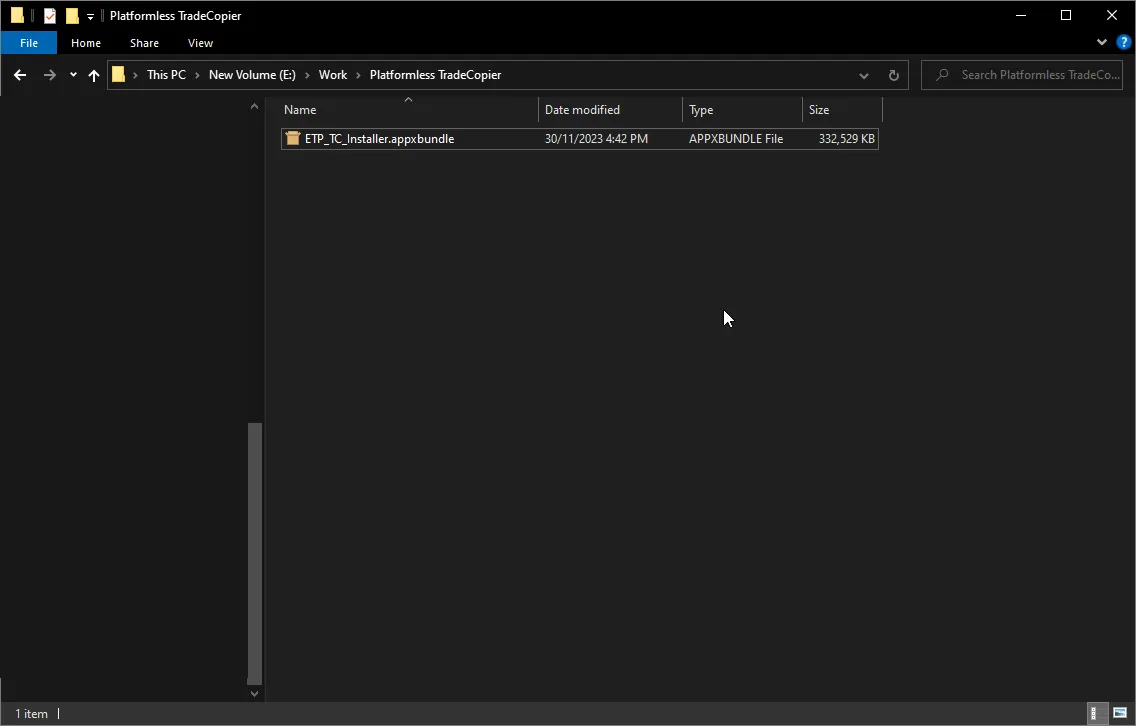
Once you finished the downloading process, you can now install the Platformless TradeCopier.
1. Running the Installer:
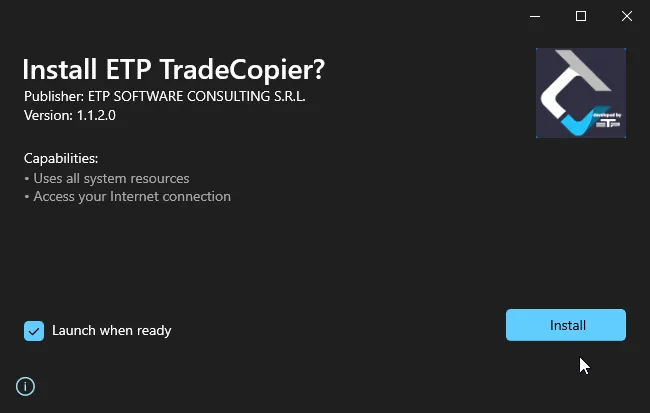
- Locate the downloaded installer file on your computer. It is typically saved in the ‘Downloads’ folder unless specified otherwise. - Double-click on the installer file to initiate the installation process. If prompted by a security warning asking for permission to run the file, confirm by clicking ‘Yes’ or ‘Run’. - The installer will launch and display the Trade Copier setup wizard.
2. Completing the Installation:
- The installation process will begin, and a progress bar may be displayed to indicate the status of the installation. - Wait for the installation to complete. This process may take several minutes depending on your system’s performance. - Upon completion, you may see a final screen confirming that the installation was successful. No need to restart your computer, all you need to do now is start the application
- Post-Installation:
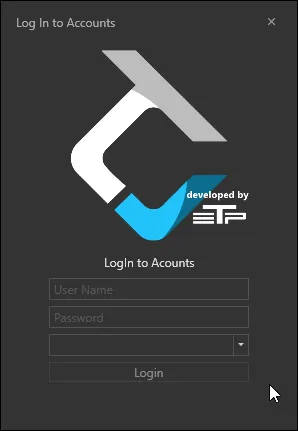
- After installation, you can launch the Trade Copier software. - Upon the launch first, you will need to log in to your ETP account, and then into your prop trading account.
2.1. Login into ETP account (first window)
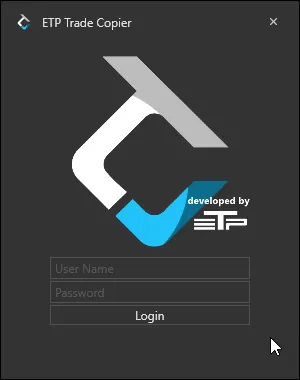
2.1. Login into Prop Trading Account