Reference
Activity Log
Reference for the Log page: the real-time activity log, what each message severity means, how to filter it, and how to use it when troubleshooting.
Last verified
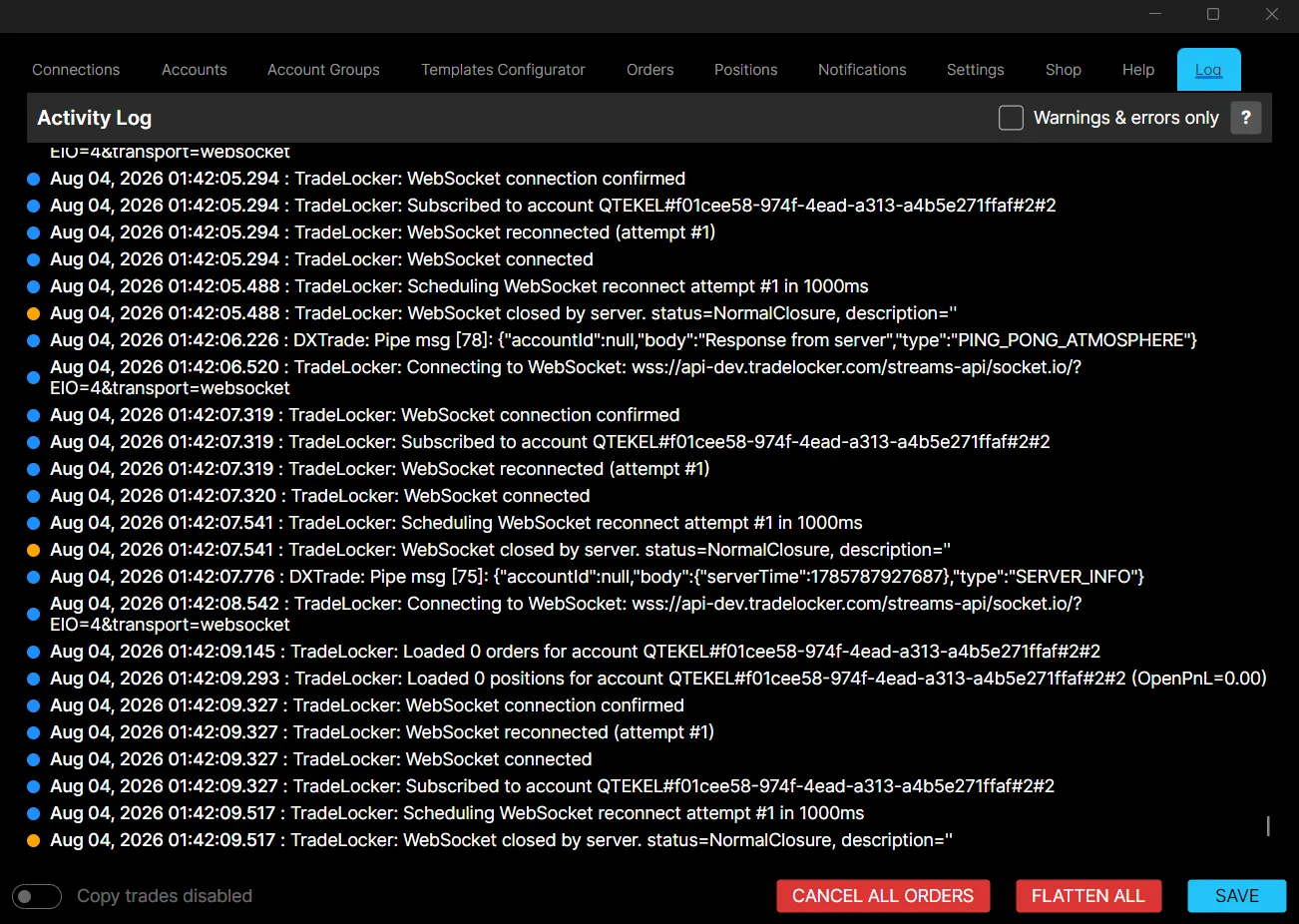
The Log page records application events, status messages, warnings, and errors generated by ETP TradeCopier in real time.
It is one of the most useful tools for monitoring application activity and troubleshooting issues. Every action is logged with a precise timestamp, so you can track exactly what the Copier was doing at any point in your session.
Log Message Types
Each entry is marked with a coloured dot indicating its severity:
- Blue: informational messages. Routine system activity such as broker connections, account subscriptions, saving user data, or confirming a successful action.
- Orange: warnings. Something that may need attention but is not necessarily broken, for example an order rejected on a Leader account, or a WebSocket connection closing and reconnecting.
- Red: errors. A critical failure, for example the application being unable to load due to an unexpected error.
Filtering the Log
Check Warnings & errors only to hide informational entries and show only warnings and errors. This is useful when you want to scan quickly for problems without scrolling through routine activity.
Log Messages
Depending on activity within TradeCopier, the Log may contain messages related to:
- Broker connections
- Account synchronization
- Trade copying
- Application status
- Warnings
- Errors
Review these messages to confirm that TradeCopier is operating as expected.
Using the Log for Troubleshooting
If you experience unexpected behaviour, the Log is the first place to check. Enable Warnings & errors only and review recent warning and error entries for anything that may explain the issue before contacting ETP Support.
Including relevant Log entries when requesting support can help the team investigate your issue more quickly.
Best Practices
- Review the Log before and during trading sessions.
- Check the Log whenever trades are not copied as expected.
- Use Warnings & errors only to scan for problems quickly.
- Include Log information when reporting issues to ETP Support.