Getting Started
Signing In
Sign in to ETP Trade Copier with the account details from your purchase email, save your login for next time, and fix common sign-in problems.
Last verified
After installing ETP TradeCopier, launch the application to display the login window.
To access the application, sign in using the ETP account credentials that were emailed to you after purchasing your licence.
Once authentication is successful, TradeCopier will load the main application where you can begin configuring your broker connections and trading accounts.
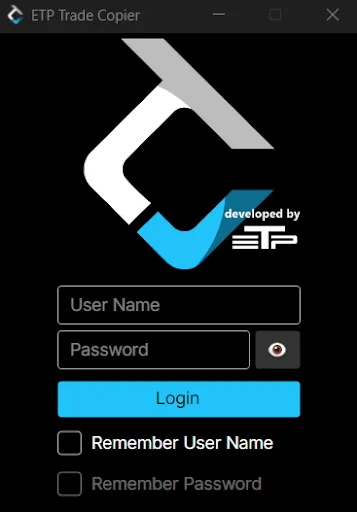
Sign In to TradeCopier
- Launch ETP TradeCopier.
- Enter the Username provided in your purchase confirmation email.
- Enter the Password provided in the same email.
- Click Login.
If the credentials are valid, you’ll be taken directly to the main TradeCopier application.
Remember Login Details
The login window provides two optional settings to make signing in more convenient.
Remember User Name
When enabled, your username is saved locally and automatically populated the next time you open TradeCopier.
This option is recommended if you regularly use the same computer.
Remember Password
When enabled, both your username and password are saved locally, allowing TradeCopier to automatically sign you in.
Only enable this option on a trusted personal computer.
If You Can’t Sign In
If you’re unable to sign in:
- Verify that your username and password have been entered exactly as provided in your purchase email.
- Check that your internet connection is active.
- If the problem persists, contact ETP Support for assistance.