How-To Guides
Create a Template
Create a Template in ETP TradeCopier, configure how trades are copied from a Leader to its Followers, and assign it to an Account Group.
Last verified
Templates define how trades are copied from a Leader account to one or more Follower accounts.
Each Account Group uses a Template to determine how copied trades should be executed. You can create multiple Templates to support different trading strategies or account configurations.
Before You Begin
Before configuring a Template, ensure that:
- You have created an Account Group.
- Your Leader and Follower accounts have been assigned.
- Your broker connections are active.
Create a Template
- Open the Templates Configurator tab.
- Click on the + to create a template.
- Choose the type of template you want to create.
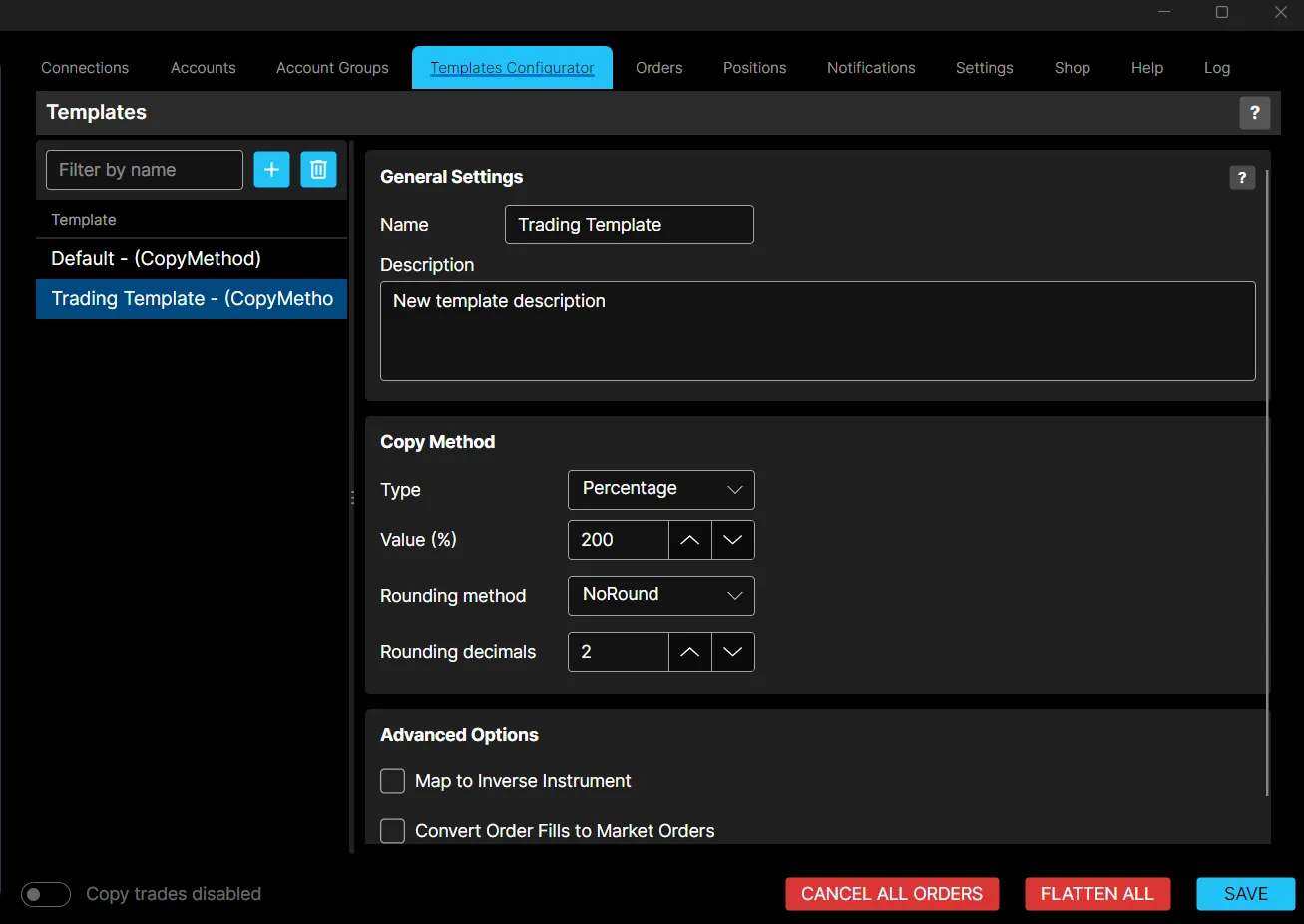
Configure Copy Settings
Templates allow you to customize how trades are copied between accounts. Depending on your trading requirements, you can configure settings such as:
- Copy Method
- Position Sizing
- Instrument Selection
- Risk Management Rules
These settings determine how each trade is processed before being sent to the Follower accounts.
Assign the Template
After creating a Template, assign it to the appropriate Account Group.
Each Account Group uses its assigned Template whenever trades are copied from the Leader account.
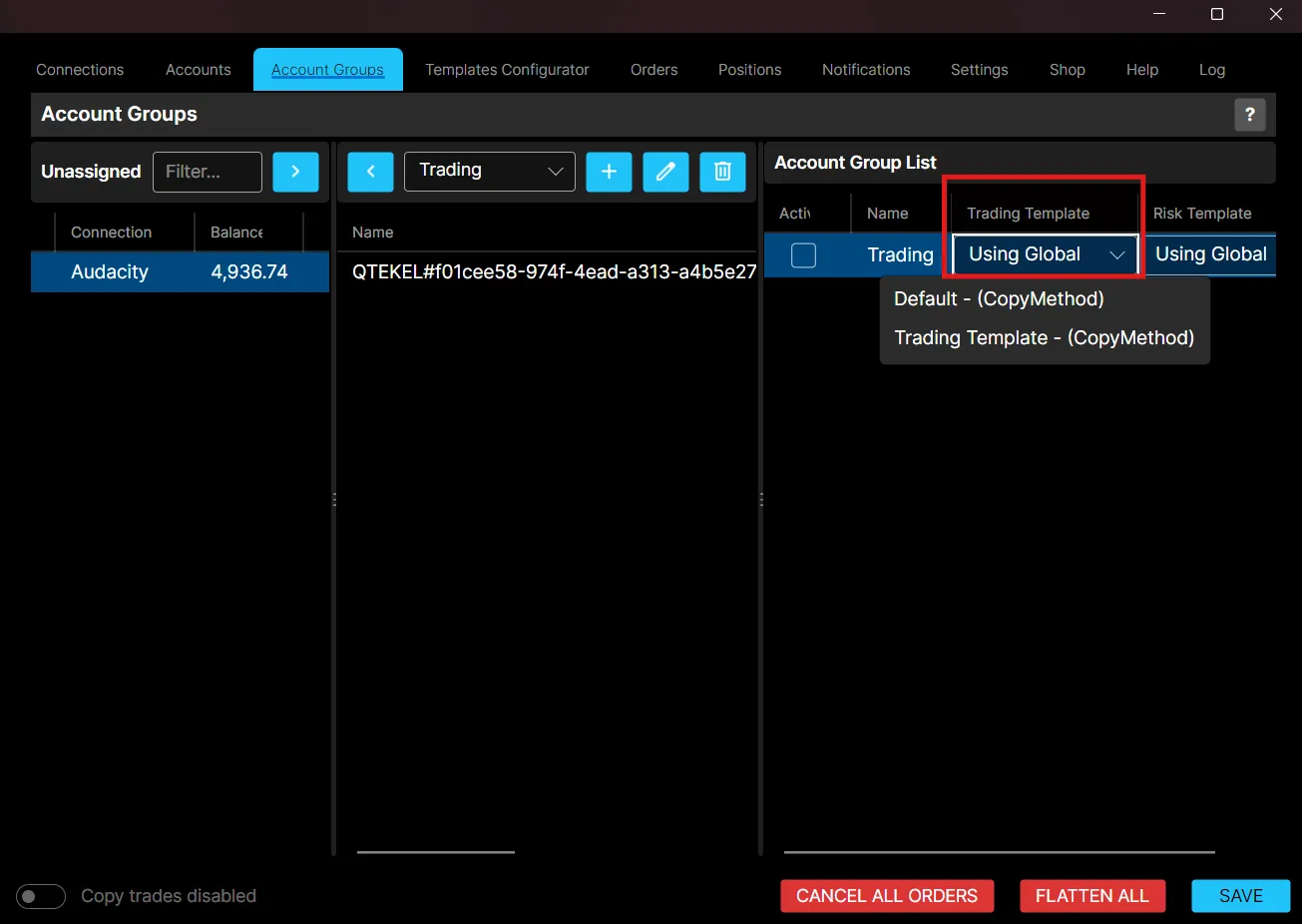
If you manage multiple trading strategies, you can create multiple Templates and assign different ones to different Account Groups.
Best Practices
- Use descriptive names for your Templates.
- Review your copy settings before enabling trade copying.
- Test new Templates using simulated accounts whenever possible.
- Click Save after making any changes.