Reference
Accounts
Reference for the Accounts page: what every column means, how leaders and followers are grouped, per-account template overrides, and the bulk controls.
Last verified
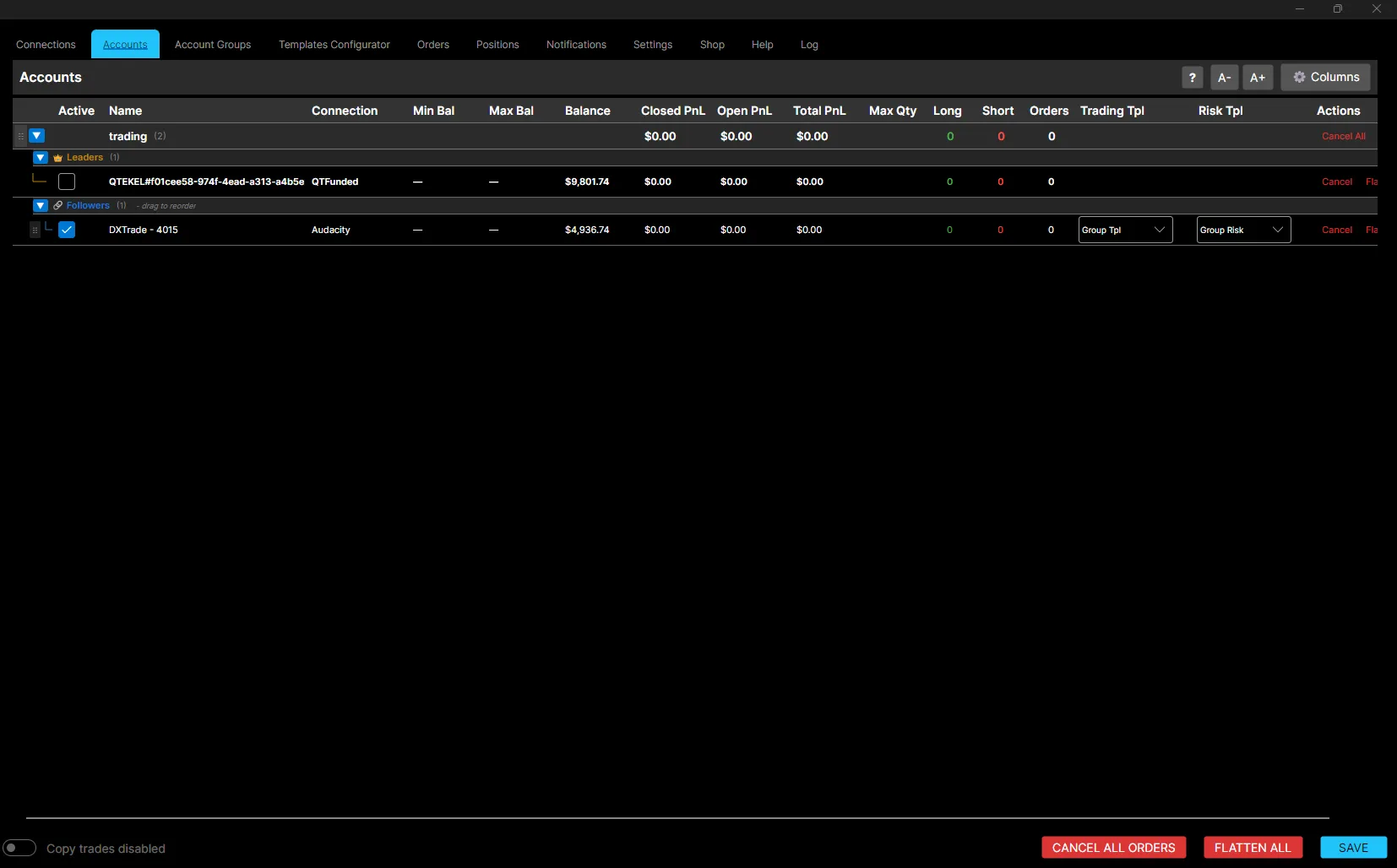
The Accounts page displays all trading accounts imported from your configured broker connections, organized by Account Group.
Accounts are automatically added when a broker connection is established, and are used when assigning Leaders and Followers within an Account Group.
Leaders and Followers
Within each Account Group, accounts are split into two sections:
- Leaders: the account or accounts that originate trades.
- Followers: the accounts that receive copied trades. When a group has more than one follower, they can be reordered by dragging.
Columns
- Active: whether the account is enabled for copy trading. Only active accounts are eligible, and after changing this you must click Save for it to apply from the next trade onward.
- Name: the account name as reported by its connection.
- Connection: the broker or prop firm connection this account uses, configured on the Connections page.
- Min Bal: the minimum balance threshold. Falling below this will fail the prop account.
- Max Bal: the profit target balance required to pass the prop account.
- Balance: the account’s current balance.
- Closed PnL: profit or loss from closed positions.
- Open PnL: profit or loss from currently open positions.
- Total PnL: combined open and closed PnL.
- Max Qty: the maximum number of contracts that can be open at once.
- Long / Short: number of long (buy) or short (sell) contracts currently open.
- Orders: number of active orders for the account.
- Trading Tpl: the trade-copying template assigned to this account. A template set here overrides any template assigned at the Account Group or Global level. Click the X to remove it and fall back to that level.
- Risk Tpl: the risk-management template assigned to this account, with the same override behaviour as Trading Tpl.
- Actions: per-account controls. Cancel cancels open orders for that account, and Flatten closes all its open positions.
Customizing the View
The toolbar in the top-right lets you adjust the table:
- ?: opens help for this page.
- A- / A+: decreases or increases text size.
- Columns: opens the Show/Hide Columns panel.
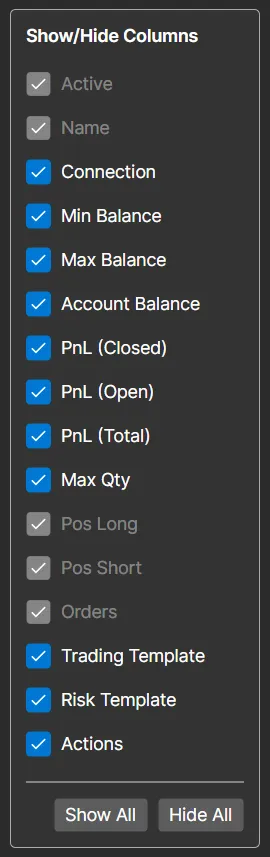
Show/Hide Columns
This panel lets you choose which columns appear in the table:
- Active, Name, Pos Long, Pos Short and Orders are always shown and cannot be hidden.
- All other columns can be toggled on or off individually: Connection, Min Balance, Max Balance, Account Balance, PnL (Closed), PnL (Open), PnL (Total), Max Qty, Trading Template, Risk Template and Actions.
- Show All and Hide All toggle every optional column at once.
Bulk Controls
At the bottom of the page:
- Copy trades toggle: enables or disables copy trading globally. When disabled, no trades copy regardless of individual account settings.
- Cancel All Orders: cancels all open orders across every account on the page.
- Flatten All: closes all open positions across every account on the page.
- Save: saves any changes made on this page, which is required after editing Active status or templates.
Account Availability
TradeCopier automatically imports accounts from each active broker connection. If an expected account does not appear:
- Verify that the broker connection is active.
- Reconnect the broker if necessary.
- Confirm that the account is available through your broker.
Using Accounts
Accounts cannot copy trades on their own. To participate in trade copying, an account must be assigned to an Account Group as either a Leader or a Follower. This is done from the Account Groups tab.
Best Practices
- Verify all accounts before creating Account Groups.
- Use simulated accounts when testing new configurations.
- Ensure broker connections remain active during trading sessions.
- Save your configuration after making any changes.