Reference
Settings
Reference for the Settings page: account details, display options, app behaviour, global templates, smart order routing, order threads and symbol mapping.
Last verified
The Settings page lets you view your account details and configure how ETP TradeCopier behaves, including default templates, order processing, and broker symbol mapping. Changes here apply across your entire TradeCopier environment.
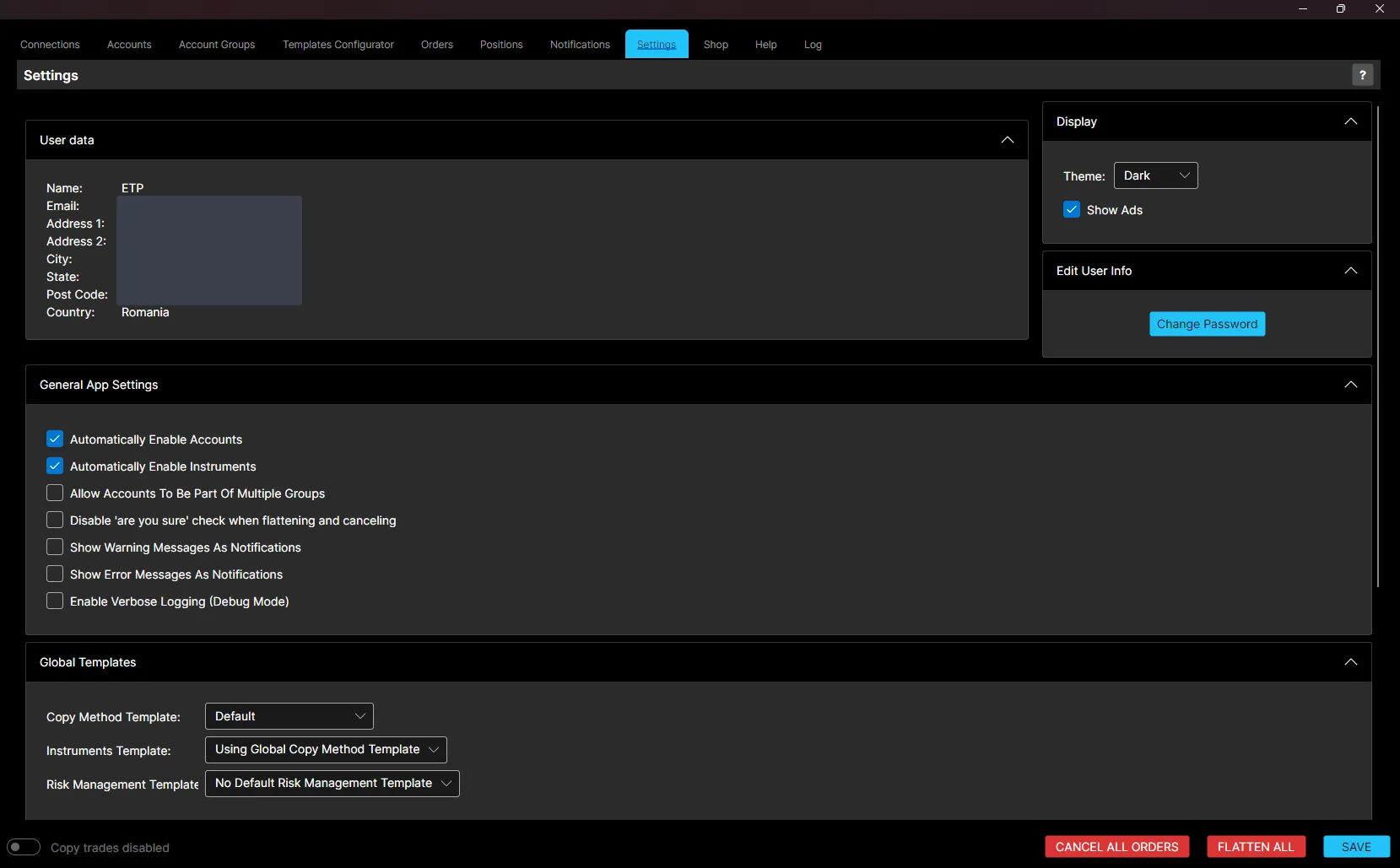
User Data
Displays your account information: Name, Email, Address, City, State, Post Code, and Country.
Display
- Theme: switch between Light and Dark mode.
- Show Ads: toggle whether ads are displayed in the application.
Edit User Info
Click Change Password to update your account password.
General App Settings
- Automatically Enable Accounts: when enabled, newly added accounts in an Account Group are automatically activated for trading.
- Automatically Enable Instruments: automatically activates instruments for trading when added to an Instrument Template. Individual instruments can still be toggled manually within the template.
- Allow Accounts To Be Part Of Multiple Groups: allows the same account to act as a Follower in more than one Account Group. A warning is shown when this is active.
- Allow Leader Accounts in Multiple Groups: appears once the setting above is enabled. Allows a Leader account in one group to also act as a Follower in another group. A risk warning is shown when this is active, since a single account would then originate trades in one group while also receiving copied trades in another.
- Disable ‘are you sure’ check when flattening and canceling: skips the confirmation prompt for actions like Flatten All, Flatten Group, and Flatten, so those actions execute immediately. Useful for experienced users or high-speed trading, but it increases the risk of accidental execution.
- Show Warning Messages As Notifications: displays warning messages as pop-up notifications.
- Show Error Messages As Notifications: displays error messages as pop-up notifications.
- Enable Verbose Logging (Debug Mode): records additional detail in the log.
Global Templates
Sets the default template applied across your entire environment unless overridden at the Account Group or account level:
- Copy Method Template: the default Copy Method template.
- Instruments Template: the default Instrument template. Defaults to following the Global Copy Method Template.
- Risk Management Template: the default Risk Management template. No template is applied by default.
Note: A template assigned directly to an individual account overrides both its Account Group’s template and any Global template. To rely purely on Global templates, avoid assigning templates at the account or group level.
Smart Order Routing
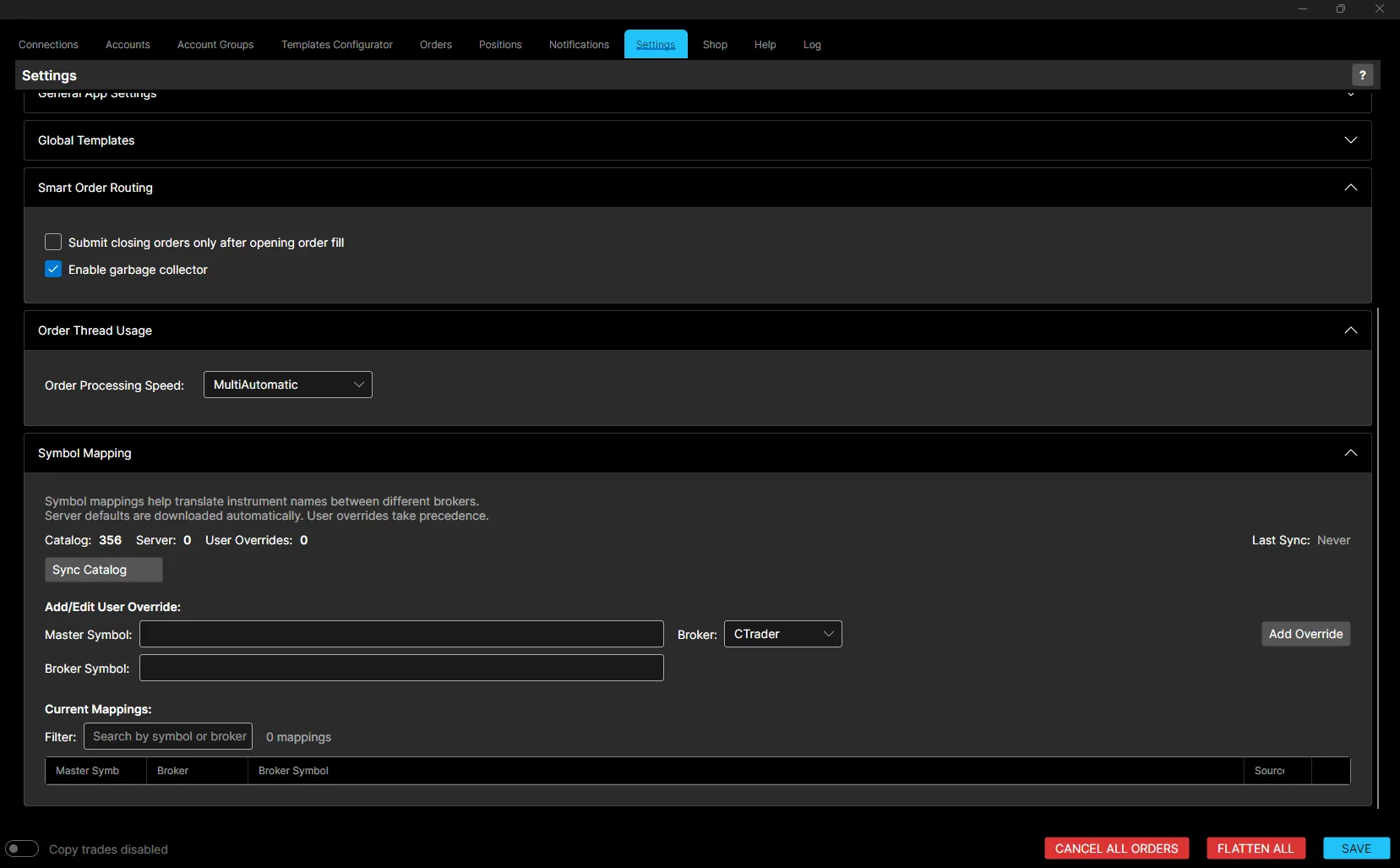
- Submit closing orders only after opening order fill: when enabled, take-profit and stop-loss orders are only placed once the opening order has actually filled. This is useful for scalping during volatile moves, since it avoids leaving TP and SL orders active if the opening trade never fills.
- Enable garbage collector: automatically closes any remaining open orders on Follower accounts once the corresponding position has already been closed on the Leader account.
Order Thread Usage
Order Processing Speed controls how many processor threads are used to process orders:
- Single: safest but slowest, using one thread.
- MultiAutomatic: the default. Detects and uses the number of threads available without overloading your processor.
- MultiMaxed: the fastest option, using 100% of available processing threads.
- MultiManual: lets you set the number of threads manually.
Symbol Mapping
Symbol mappings translate instrument names between different brokers, so the same instrument can be recognised correctly across all your connections.
- Catalog / Server / User Overrides: counts of mappings currently loaded from each source. Last Sync shows when the catalog was last refreshed.
- Sync Catalog: manually refreshes the mapping catalog from the server.
- Add/Edit User Override: create a custom mapping by entering a Master Symbol, selecting the Broker, entering the corresponding Broker Symbol, and clicking Add Override.
- Current Mappings: lists all active mappings, with a filter to search by symbol or broker. Each row shows the Master Symbol, Broker, Broker Symbol, and Source, which is either a server default or a user override.
Server defaults are downloaded automatically, and user overrides take precedence over server defaults.
Best Practices
- Review settings before your first trading session.
- Only change settings you understand.
- Save your configuration after making any changes.
- Restart the application if prompted.