Reference
Connections
Reference for the Connections page: what each column shows, how to create, edit and remove a connection, and what the connected and disconnected actions do.
Last verified
The Connections page is where you create and manage connections between ETP TradeCopier and your supported trading platforms.
A connection allows TradeCopier to access your trading accounts and monitor trading activity. Before trades can be copied, at least one active connection must be configured.
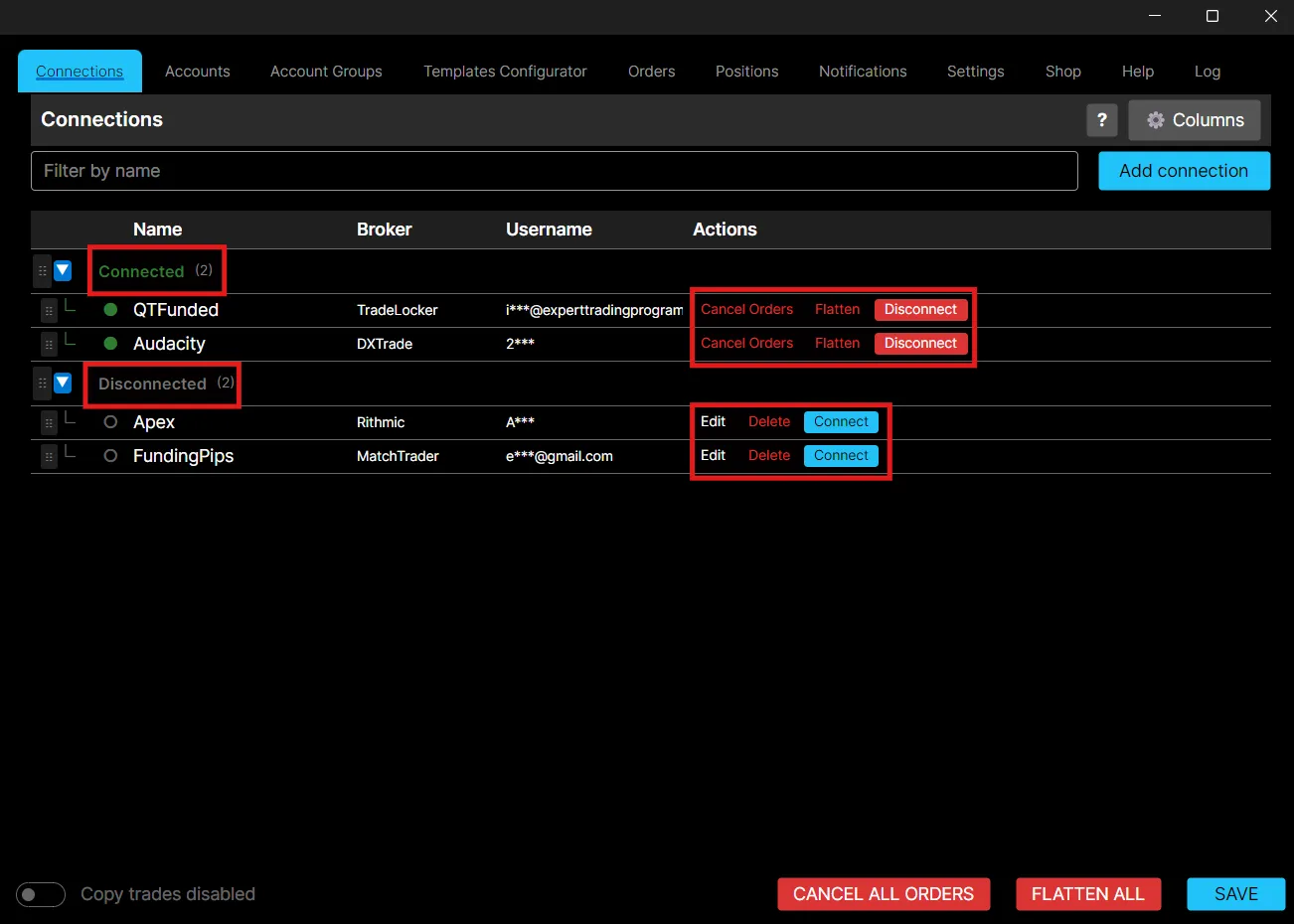
Connections Overview
Each connection listed on this page shows:
- Status: whether the connection is currently connected or disconnected. When it is connected you will see the green signal.
- Name: the custom name you assigned when adding the connection.
- Broker: the broker or platform the connection is linked to (for example Rithmic or NinjaTrader 8).
- Username: the unique profile identifier for that connection.
Creating a Connection
To create a new connection:
- Open the Connections page.
- Click Add Connection.
- Enter a custom connection name.
- Enter the Username and Password provided by your broker or prop firm.
- Select your Broker (for example Rithmic, DXFeed, NinjaTrader 8).
- Select your prop trading firm, if applicable (for example Apex, Topstep, PropShop Trader).
- Select the server closest to your location.
- Click Save Connection.
Optionally, check Auto Connect to have TradeCopier connect to this profile automatically on startup. After saving for the first time you will need to connect manually once. From then on it will auto-connect whenever TradeCopier opens.
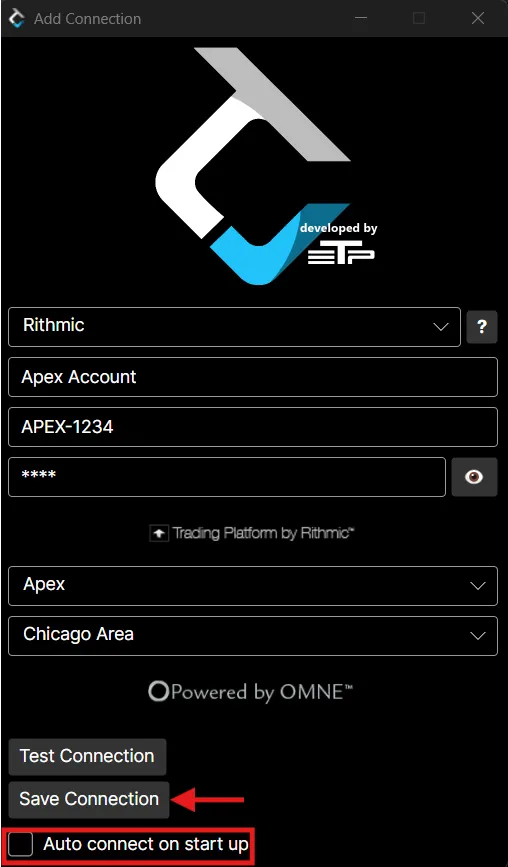
Once connected successfully, your trading accounts will be imported automatically.
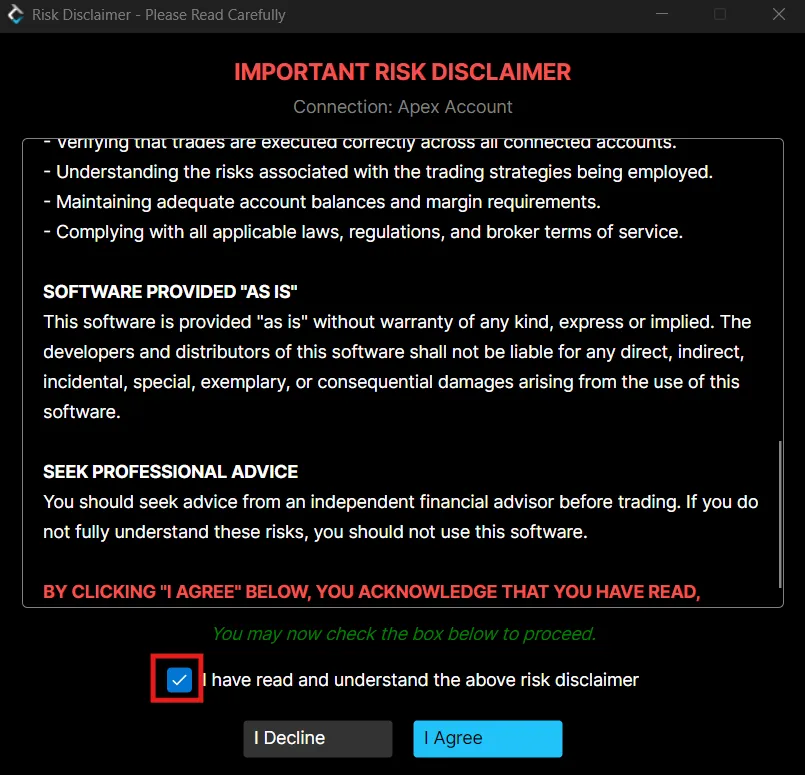
Note: After saving a new connection you will be asked to accept the platform’s Risk Disclosure Statement and Terms and Conditions before it can connect. All connections have a 30-second timeout. If a connection fails, try changing the server location using Edit. This applies specifically to Rithmic connections.
Connection Status
The Connections page displays the live status of each configured connection. Review it regularly to make sure your brokers stay connected while TradeCopier is running. If a connection drops, reconnect it before enabling trade copying.
While connected, you can:
- Cancel Orders: cancel all open orders for that connection.
- Flatten: close all open positions on that connection.
- Disconnect: disconnect the profile from the platform.
While disconnected, you can:
- Edit: modify the connection’s settings such as name and server.
- Connect: reconnect the profile to resume trading.
- Delete: remove the connection entirely.
Edit a Connection
To update an existing connection:
- Select the connection.
- Modify the required settings.
- Save your changes.
Changes take effect once the connection has been updated successfully.
Remove a Connection
If a connection is no longer needed:
- Select the connection.
- Choose Remove or Delete.
- Confirm the action.
Removing a connection also removes access to any accounts associated with it.
Supported Brokers
TradeCopier supports multiple broker and trading platform connections: Rithmic, DXFeed, Tradovate, NinjaTrader 8, cTrader, ProjectX, DXtrade, TradeLocker, MatchTrader and Tickblaze.
Best Practices
- Verify that every connection is active before enabling trade copying.
- Use meaningful connection names when managing multiple brokers.
- Review connection status regularly during trading sessions.
- Save your configuration after making any changes.